The area and border colors of the department are only used in the display of the block layout, not in the display of the hexagonal adjacency graph. The colors can be either the predefined palette colors or any color for which you have specified the RGB values. You select this option by clicking either the RGB or Palette buttons. You can specify the RGB values by clicking the Select button underneath the RGB button. The Color dialog box is displayed, which allows you to select from a set of colors or to set the RGB values directly. The Color dialog box is illustrated in Figure 2.8. Using palette colors is slightly more efficient than using RGB colors in the display of departments.
The Color dialog box is a common dialog window and its exact appearance depends on the version of your Windows operating environment, the version of the Microsoft runtime libraries, and the number of colors or color depth of your Windows display.
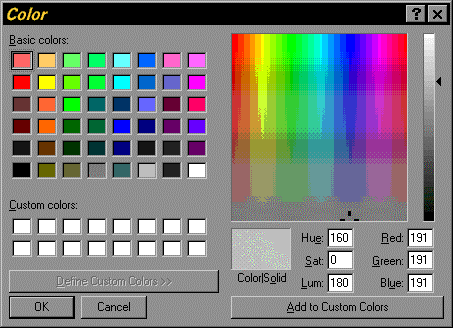
Figure 2.8. Common Color Dialog Box
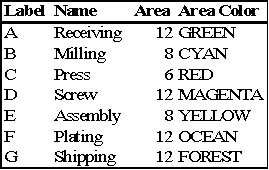
Continue adding departments to the project until the project contains seven departments. The department data are given in Table 2.1. All departments have a layout position that is free and have a BLACK border color.
Table 2.1. Department Data for the Tutorial Project