


Select the third view, which displays the hexagonal adjacency graph, by either clicking on its title bar or from the Window menu. Toggle the display of hexagonal adjacency graph in this view by selecting the Grid command from the View menu or by pressing the Grid button on the toolbar. You can also display the hexagonal adjacency graph by pressing the shortcut keys Ctrl+Alt+G.
Set the grid size for this project equal to one with the Grid Size command of the Edit menu. The Grid Size dialog box for this tutorial project is illustrated in Figure 2.2. Enter one for the grid size. Press OK and the tutorial project will use this new grid size.
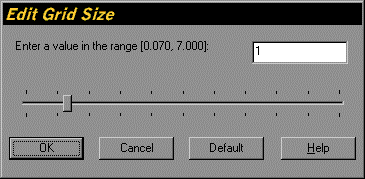
Figure 2.2. Edit Grid Size Dialog Box
If you have selected to display the grid in the layout view, then this view is updated to reflect the new grid size. All project data items, such as the grid size, have a single value that is used by all the views.
Select the fourth view, which displays the block layout, by either clicking on its title bar or from the Window menu. Toggle the display of rectangular grid in this view by selecting the Grid command from the View menu or by pressing the Grid button on the toolbar. You can also display the rectangular grid by pressing the shortcut keys Ctrl+Alt+G.
The different views of the current project at this time are illustrated in Figure 2.3. If you wish you can also display the orthogonal grid in the fourth or layout view in the same manner. Observe that the view titles indicate that this is a new project that not has been saved yet.

Figure 2.3. Initial Views for the New Project